The heart-stopping moment when you realize your iPhone data is gone never gets easier. Whether it’s cherished family photos from last Christmas, crucial work documents, or text conversations that hold irreplaceable memories, data loss feels personal. Your iPhone isn’t just a device—it’s a digital vault containing years of your life.
The good news? Data recovery in 2025 has become more accessible and reliable than ever before. While losing important information still triggers that familiar wave of panic, modern recovery methods have evolved to handle even the most challenging scenarios. The key lies in understanding which approach works best for your specific situation and acting quickly before the data becomes truly unrecoverable.
This guide cuts through the complexity to focus on three genuinely effective methods that don’t require technical expertise. Each approach tackles different recovery scenarios, from simple accidental deletions to complete device failures. By the end, you’ll know exactly which path offers your best chance of getting your precious data back.
Understanding iPhone Data Loss in 2025
Before diving into recovery methods, it’s crucial to understand how modern iPhones handle data deletion. When you delete a file, iOS doesn’t immediately erase it from storage. Instead, the system marks that storage space as “available for new data.” Until something overwrites that specific location, recovery remains possible.
This process explains why acting quickly dramatically improves your chances of successful recovery. Every photo you take, every app you download, and every message you send potentially overwrites space where your deleted data once lived. Time truly becomes your enemy in data recovery scenarios.
iOS updates, system crashes, and hardware failures can also cause data to become inaccessible without being technically deleted. In these cases, the information often remains intact but hidden within the device’s file system, requiring specialized tools to locate and extract it.
Method 1: Built-in iOS Recovery Features (The First Line of Defense)
Apple has steadily improved iOS’s native recovery capabilities, making this your fastest and most cost-effective first step. These built-in features handle the majority of common data loss scenarios without requiring third-party software or technical knowledge.
Recently Deleted Folders
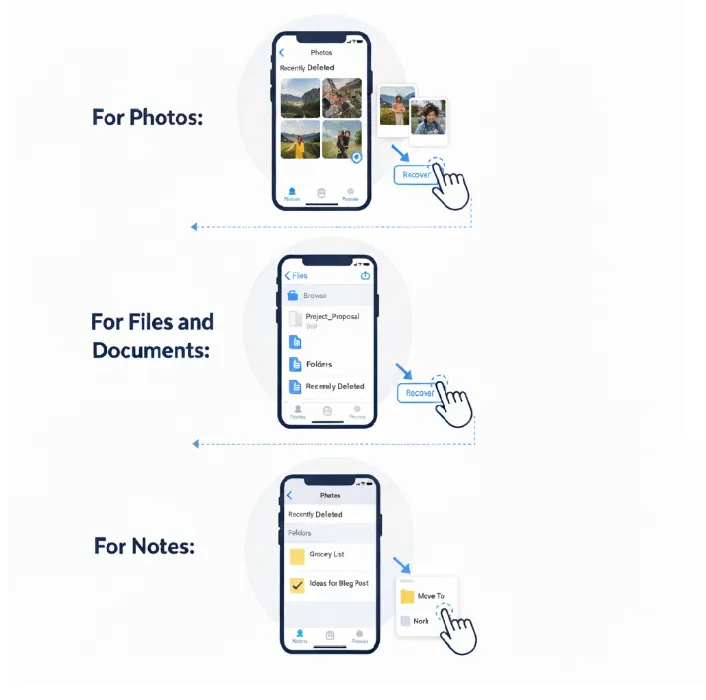
Most iOS apps now include Recently Deleted folders that act as safety nets for accidental deletions. These folders retain deleted items for 30-40 days, giving you ample time to recover mistakes.
For Photos:
- Open the Photos app
- Navigate to Albums > Recently Deleted
- Select the photos you want to recover
- Tap “Recover” to restore them to your main library
For Files and Documents:
- Launch the Files app
- Tap Browse > Recently Deleted
- Select the files you need
- Choose “Recover” to return them to their original locations
For Notes:
- Open the Notes app
- Go to Folders > Recently Deleted
- Select notes to recover
- Tap “Move To” and choose a folder
iCloud Sync Recovery
If you’ve enabled iCloud syncing for specific data types, recovering information becomes straightforward even if it’s not in the Recently Deleted folders.
Steps for iCloud Recovery:
- Go to Settings > [Your Name] > iCloud
- Toggle off the data type you want to recover (Photos, Contacts, etc.)
- Choose “Keep on My iPhone” when prompted
- Wait 2-3 minutes, then toggle the sync back on
- Select “Merge” to combine local and cloud data
This method often retrieves data that disappeared during iOS updates or sync conflicts, making it particularly valuable for contacts and calendar entries that seem to vanish mysteriously.
Limitations of Built-in Recovery
While convenient and free, iOS native features have significant limitations. They only work within their retention periods, can’t recover data from severe system crashes, and offer no help when backups don’t exist. For more complex recovery needs, professional solutions become necessary.
Method 2: iCloud and iTunes Backup Restoration
Backup restoration represents the most comprehensive recovery method when your built-in options fail. If you’ve been regularly backing up your iPhone, this approach can restore your device to a previous state when your data was still intact.
iCloud Backup Recovery
iCloud automatically creates backups when your iPhone is charging, locked, and connected to Wi-Fi. These backups can be lifesavers when dealing with complete data loss or device replacement.
Complete Device Restoration:
- Go to Settings > General > Transfer or Reset iPhone
- Select “Erase All Content and Settings”
- After your iPhone restarts, choose “Restore from iCloud Backup.”
- Sign in with your Apple ID and select the most recent backup
- Wait for the restoration process to complete
Selective Data Recovery via iCloud.com:
For more targeted recovery without erasing your entire device:
- Visit iCloud.com in a web browser
- Sign in with your Apple ID
- Access specific apps (Photos, Contacts, Calendar, etc.)
- Look for restore options within each service
- Download or sync the data you need
iTunes/Finder Backup Recovery
Local backups created through iTunes (Windows/older macOS) or Finder (modern macOS) offer another recovery path, particularly valuable if iCloud wasn’t enabled or syncing properly.
Restoration Process:
- Connect your iPhone to the computer where backups are stored
- Open iTunes or Finder
- Select your device when it appears
- Click “Restore Backup”
- Choose the backup dated before your data loss occurred
- Allow the restoration to complete
Critical Considerations for Backup Recovery: Backup restoration completely replaces your current iPhone data with the backup version. Any photos, messages, apps, or settings created after the backup date will be permanently lost. This nuclear option should only be used when the lost data’s value exceeds everything you’d lose in the process.
Additionally, backup restoration won’t help if your backups are corrupted, too old, or were never enabled in the first place. Many iPhone users discover their backup settings aren’t configured properly only after experiencing data loss.
Method 3: Professional Recovery Software (When All Else Fails)
When native iOS features and backup restoration can’t solve your data loss problem, professional recovery software becomes your most powerful option. Traditional data recovery software uses USB interfaces to recover the data. But drives or SD cards are slow to read/write, and more data will be automatically saved on the cloud drive.
Luckily, Gbyte Recovery, as an iPhone data recovery tool, has evolved significantly, offering sophisticated scanning capabilities that can locate data even in seemingly hopeless situations.
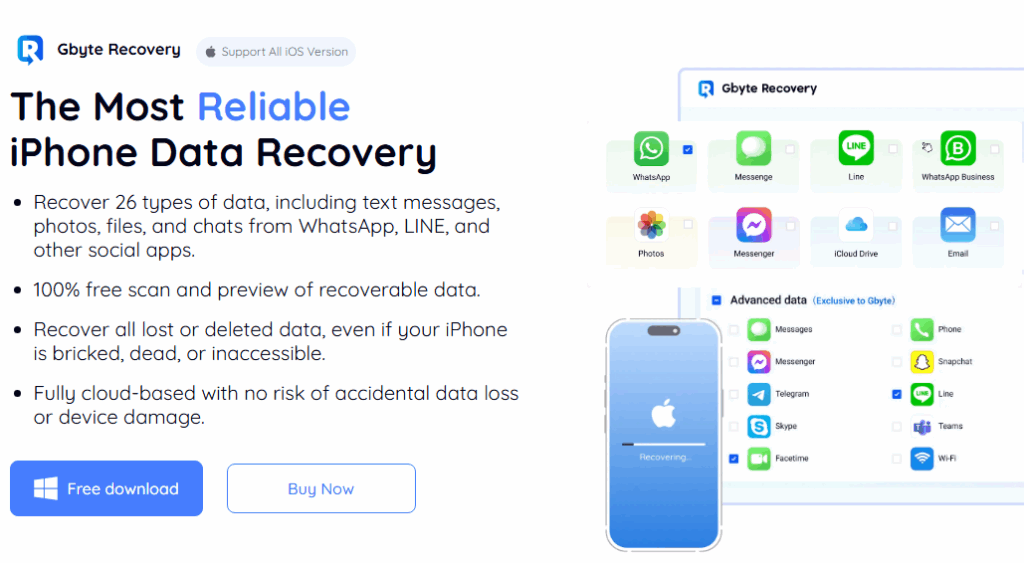
Key Advantages of Professional Recovery:
No Backup Required: Can recover data directly from your device even when no backups exist
Selective Recovery: Choose exactly what to restore without affecting other data
Multiple Scan Methods: Device scanning, iCloud analysis, and backup examination
Preview Capability: Verify recoverable data before committing to the recovery process
Non-Destructive Process: Doesn’t overwrite existing iPhone data during recovery
Step-by-Step Professional Recovery Process:
1. Software Installation: Download and install the recovery software on your computer (Windows or Mac supported). Legitimate tools like Gbyte require no complex setup procedures.
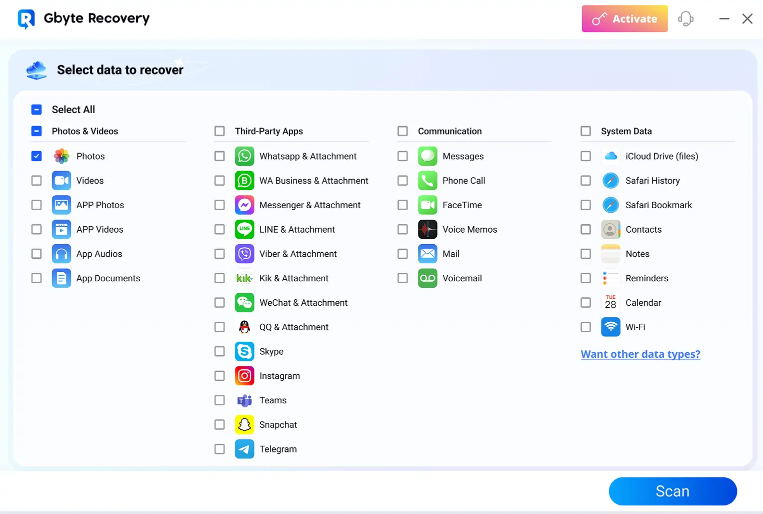
2. Data Type Configuration: Select specific data types to recover: photos, messages, contacts, notes, call logs, WhatsApp data, or comprehensive scanning for all supported formats.
3. Preview and Verification: Review data located within the software interface. Reputable tools show actual file previews, allowing you to verify that photos aren’t corrupted and messages are readable.
4. Selective Recovery: Choose specific items or entire categories to recover. The software saves selected data to your computer, typically organizing it into clearly labeled folders.
Why Gbyte Succeeds Where Others Fail
Professional recovery tools examine your iPhone’s storage at a deeper level than iOS itself can access. They can identify and reconstruct file fragments, analyze backup files for recoverable data, and even access information through iCloud connections when direct device scanning isn’t possible.
Gbyte Recovery exemplifies the current generation of best iPhone data recovery software, combining advanced scanning algorithms with user-friendly interfaces. Unlike generic recovery tools that make empty promises, Gbyte has proven effective in real-world data loss scenarios, maintaining high success rates across different types of data loss.
Success Rates and Realistic Expectations
Professional recovery software success rates vary based on several factors:
- Recently deleted data: 80-95% recovery rate within 30 days
- iOS update-related loss: 70-85% recovery rate
- Device crash/corruption: 60-80% recovery rate
- Long-term deleted data: 40-70% recovery rate, depending on device usage
The most critical factor affecting success remains timing. Acting quickly, before new data overwrites deleted file locations, dramatically improves recovery chances.
Investment Considerations
Professional recovery software requires a financial investment, but the cost often pales in comparison to the value of recovered data. Gbyte Recovery offers several pricing tiers:
- Monthly plans for one-time emergencies: $49.99/month
- Annual subscriptions for regular users: $8.33/month
- Lifetime licenses providing permanent access: $149.99
For individuals and businesses handling irreplaceable data, professional software represents insurance against data loss catastrophes. The peace of mind alone often justifies the investment, particularly for users who frequently test iOS betas or manage devices with limited storage.
Prevention: Your Best Defense Against Future Data Loss
While recovery methods continue improving, prevention remains your strongest protection against data loss. Implement these strategies to minimize future risks:
Multiple Backup Systems: Enable both iCloud and local backups, creating redundancy if one system fails
Regular Backup Verification: Periodically check that your backups are current and complete
Cloud Service Redundancy: Store critical data across multiple cloud platforms (iCloud, Google Drive, Dropbox)
Pre-Update Backups: Always create fresh backups before major iOS updates
Storage Management: Avoid running your iPhone at capacity, which can cause data corruption
The emotional impact of data loss never fully disappears, but knowing reliable recovery methods exist provides crucial peace of mind. Whether you’re dealing with accidentally deleted family photos or critical business documents that vanished during an iOS update, the three methods outlined in this guide offer genuine paths back to your precious information. The key lies in acting quickly, choosing the right approach for your situation, and understanding that modern data recovery has evolved far beyond the hit-or-miss solutions of previous years.